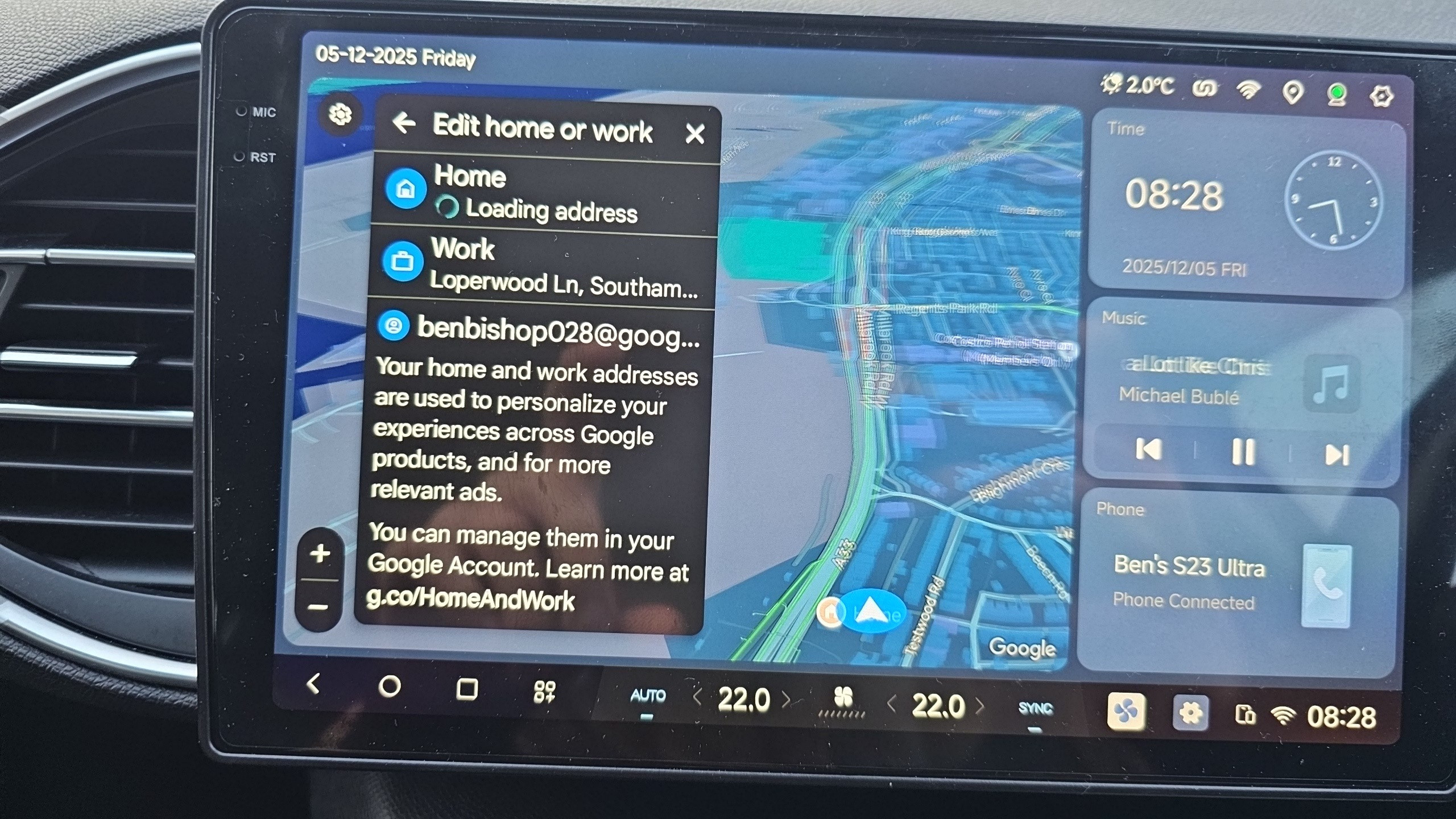
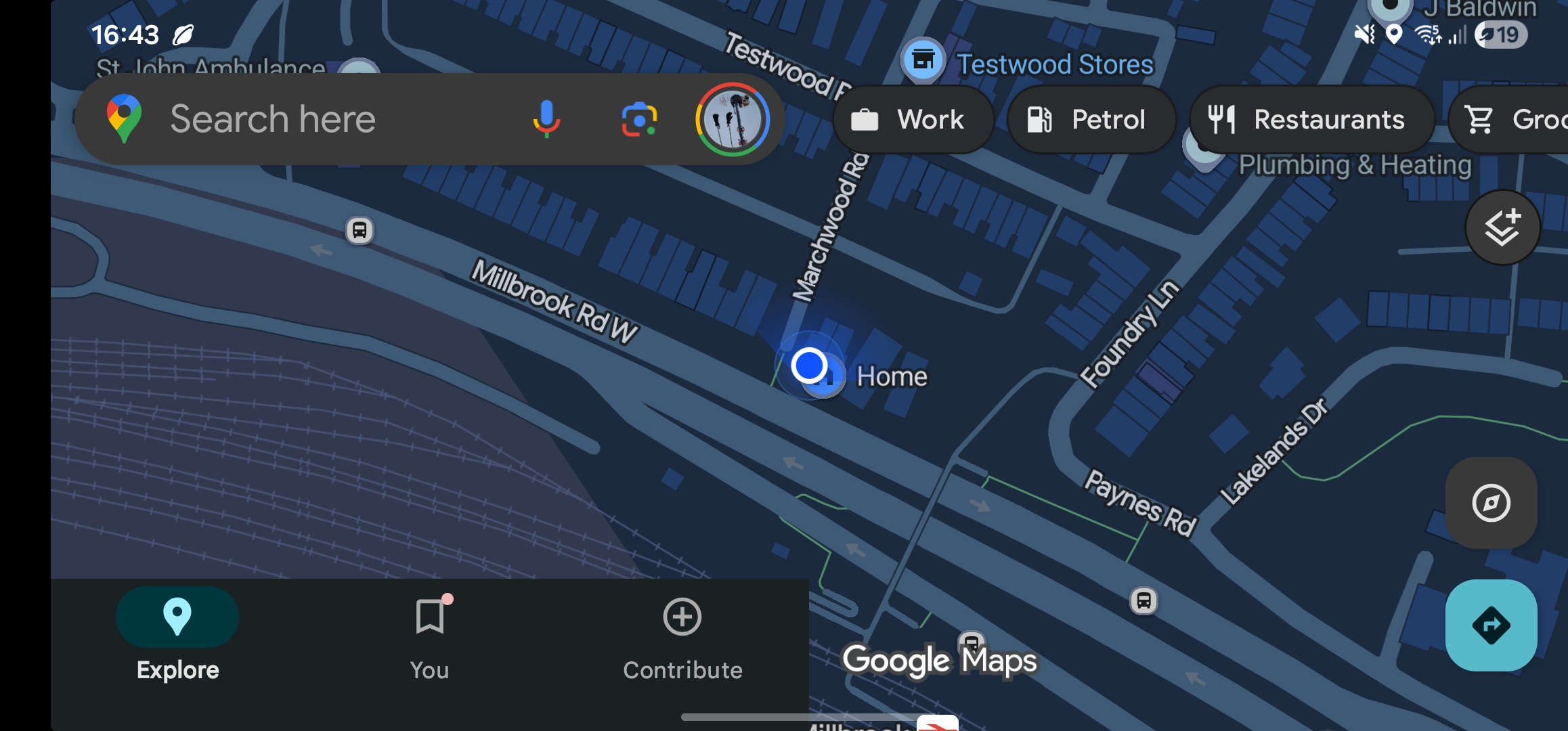
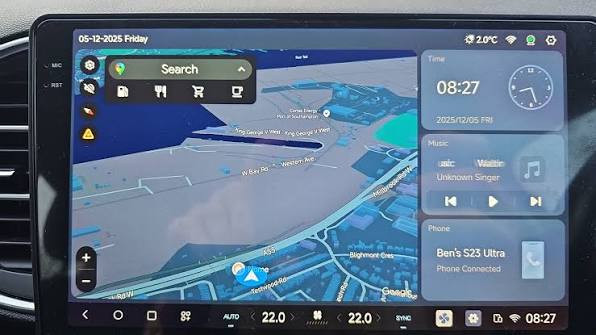
❗️This is confirmed to be working for dudu7 devices only. You can try it on dudu5/6/etc but it probably won't work properly❗️
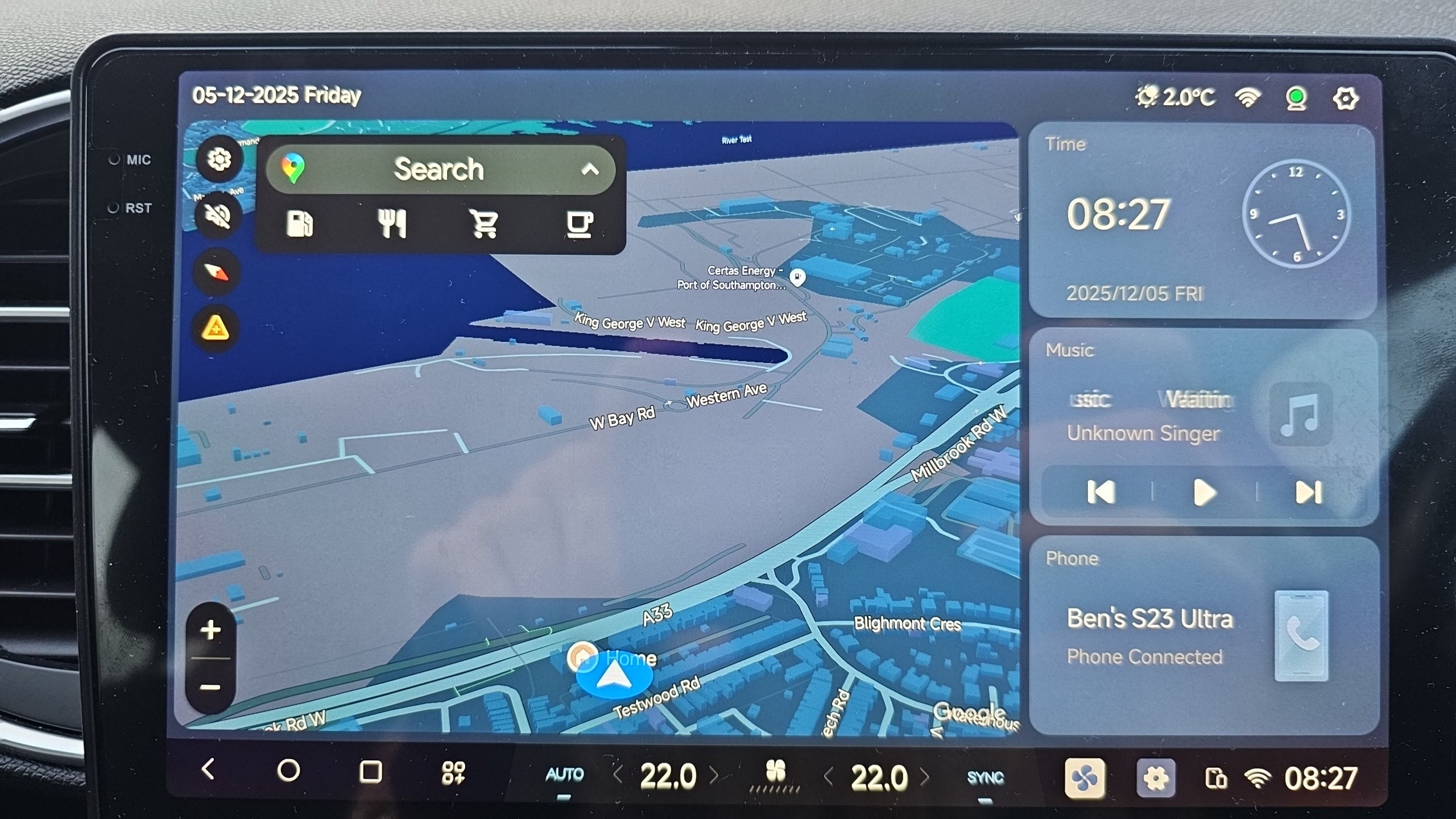
This is a tutorial to get a version of Google maps that is always in drive mode, it will basically have the same layout that Google maps does when you run it on android auto. But with this tutorial you don't need to use android auto, you can run it exactly the same way you would run the regular version of google maps on the dudu7 head unit, and it works in picture in picture mode 🙂.
First of all, make sure you have your google account signed in on the dudu7 device. Basically you need your google account signed in on the play store. You can check this in the "accounts" section of the android settings. If not then in the android settings, go to accounts - add account, and sign in with your google account.
Step 1) install this apk: https://drive.google.com/file/d/1WoYRIBMwI5zL9VPKamYvD4tXdGE30J-O/view?usp=drivesdk
Step 2) Uninstall Google maps (press down on the icon in the app store and press "uninstall app")
Step 3) Download and install aurora store (its basically a copy of playstore that allows you to change what devices app versions you can install)
https://www.auroraoss.com/files/AuroraStore/Release
Step 4) Download this file, and change the file extension by renaming the file, change the ".txt" to ".properties"
Step 5) open aurora store go through and grant the permissions, then click the button in the top right corner, then click "spoof manager".
Step 6) click the three dots in the top right corner and click import, then find the file from above in the window that opens (don't forget to change the file extension from ".txt" to ".properties".
Step 7) scroll down and find the option called "Volvo EX30" (if it's not there just click the back button in the top left corner and reopen the spoof manager menu)
Step 8) The app will restart, then click on anonymous log in option, don't sign in with a Google account.
Step 9) search up maps and install it. Again make sure you uninstalled the original version of Google maps before.
Step 10) Launch Google maps and it should have automatically signed you in!
That's it, you can now set it as your picture in picture navigation app and it should all work. You can update the app through aurora store, just make sure you have the properties file set in spoof manager before installing updates. Don't update it in the play store or it will just revert back to normal Google maps, I recommend turning off automatic updates on google play store or it might update automatically if you connect to WiFi.
If you get this issue where some of the text is cut off: 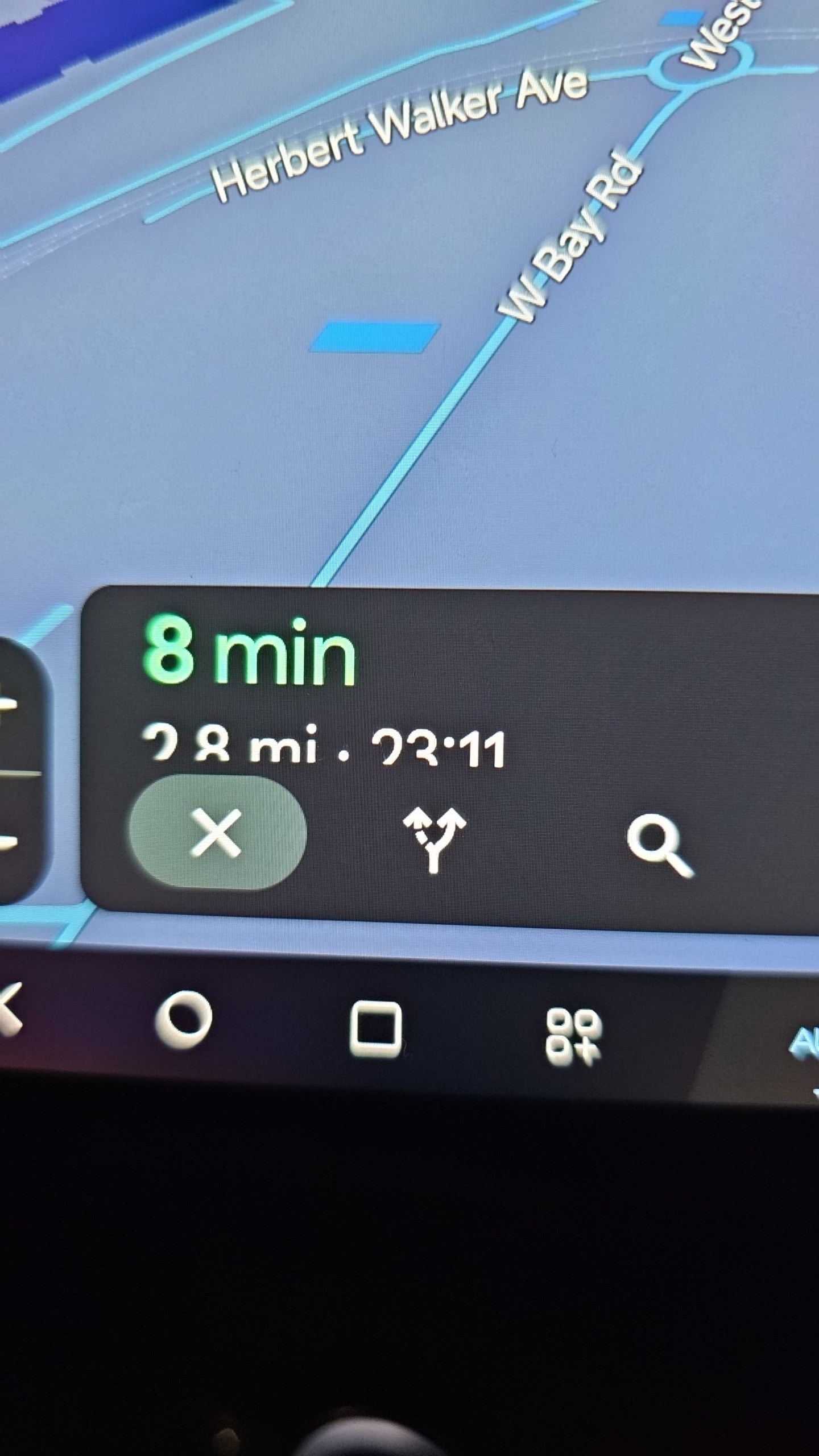
Go into the android settings, scroll down to "accessibility" and move the font size slider down one and that should fix the issue. Another thing that can help is to go into "pip" settings in the launcher settings menu and change "pip dpi" to medium or low.
If you get stuck on a step, I'll try and help so just ask questions below 🙂
Here's what it looks like running in pip on my dudu7 device:
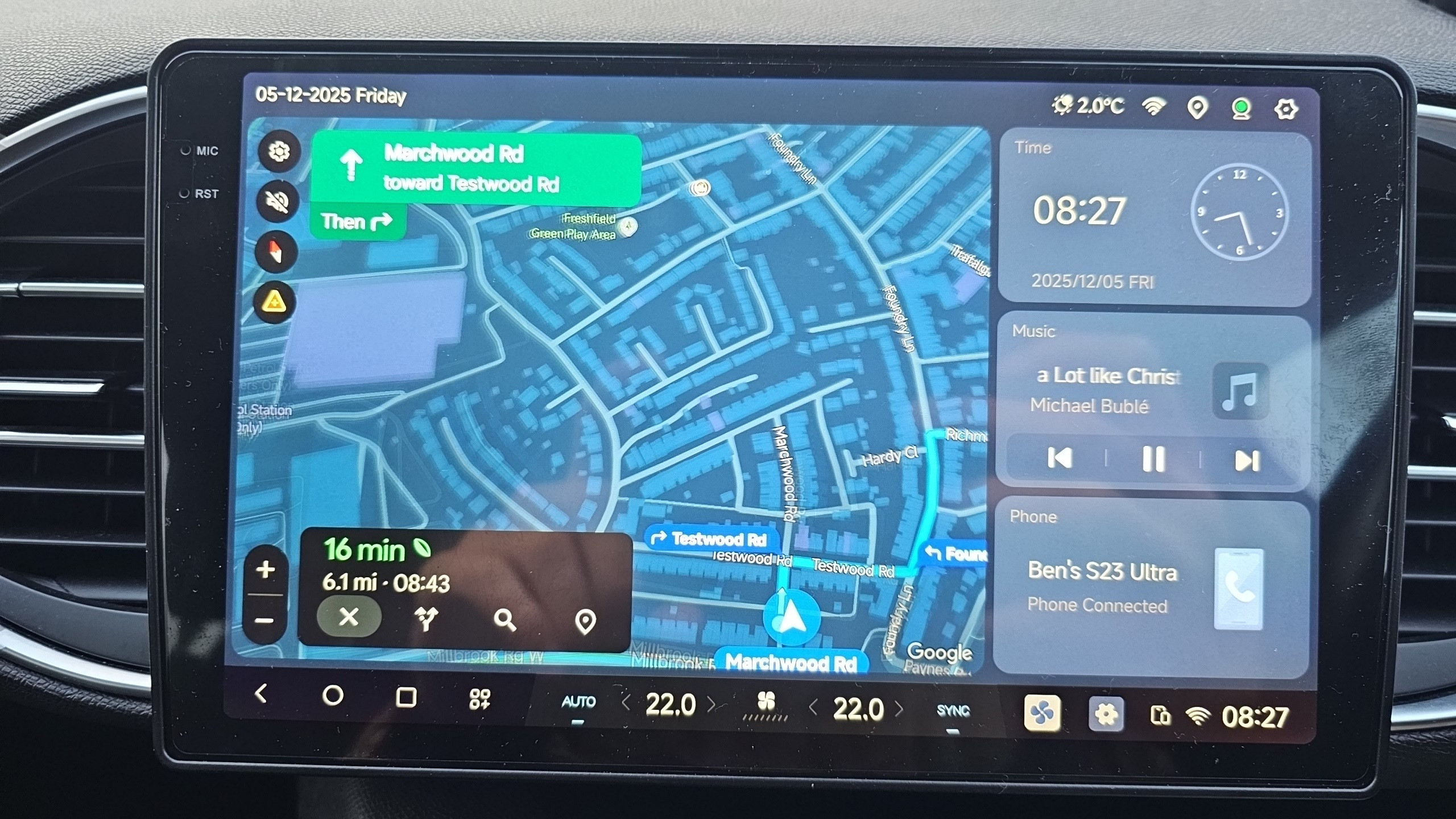
And here you can see that I'm signed in with my google account: