Telegram link:
https://t.me/duduauto
System upgrade instructions:
●1. OTA interface offline upgrade: The system package does not need to be renamed or decompressed. Directly click "Offline Upgrade" in the OTA interface and select the upgrade package. When using this method, please ignore the following precautions for upgrading via SD card flashing or inserting a memory card.
●2. OTA offline upgrade failure: Please use the following "update" method to flash the firmware. You do not need to open the OTA software to perform the upgrade. After renaming the SD card in the root directory and rebooting, or hot-plugging the SD card, it will be automatically recognized.
●3. OTA online upgrade: Open Settings - More features - App Market - Test channels. After enabling this, online OTA software can recognize the latest online push notifications.
If the online upgrade fails, please follow the steps shown in the diagram below (Reason for failure: the online push feature is currently unavailable).
Please manually download the system firmware and insert the SD card.
Offline upgrade steps:
Go to Settings > More Features > App Market and toggle on the "Test Channel" switch.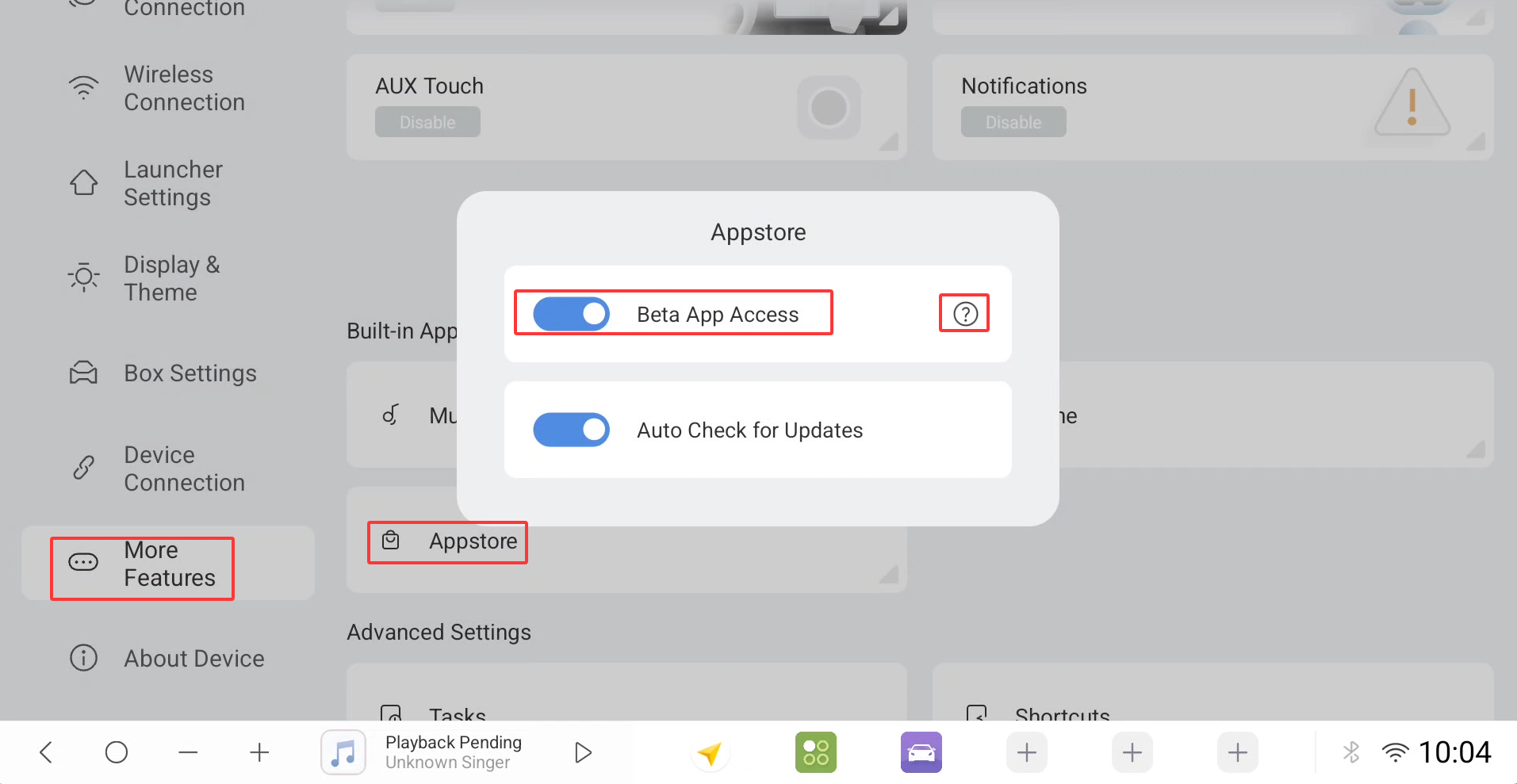
Open the OTA app and select "Offline Upgrade." Tap the upgrade package to start the automatic system upgrade.
Note: Please ensure a stable network connection; otherwise, the upgrade verification will fail.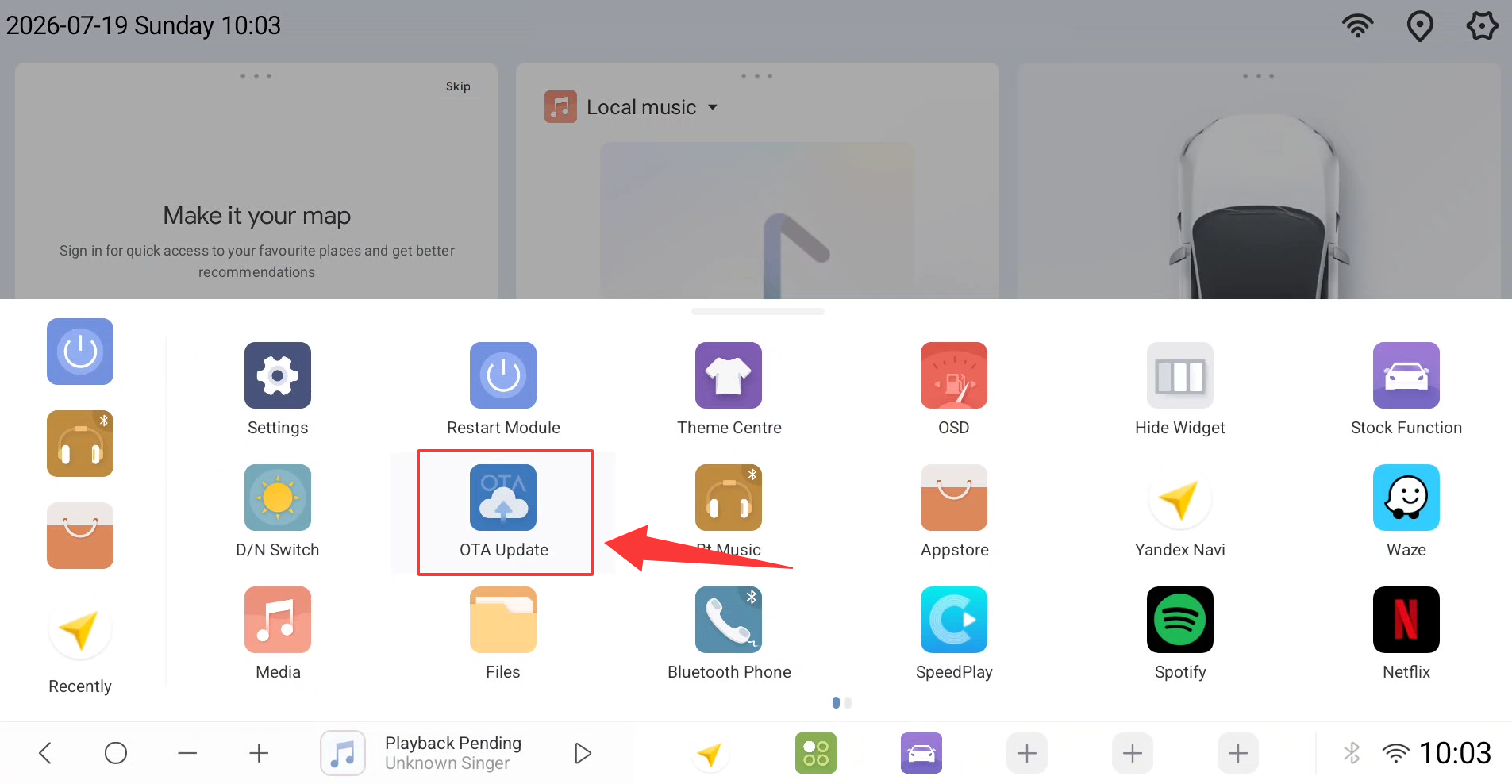
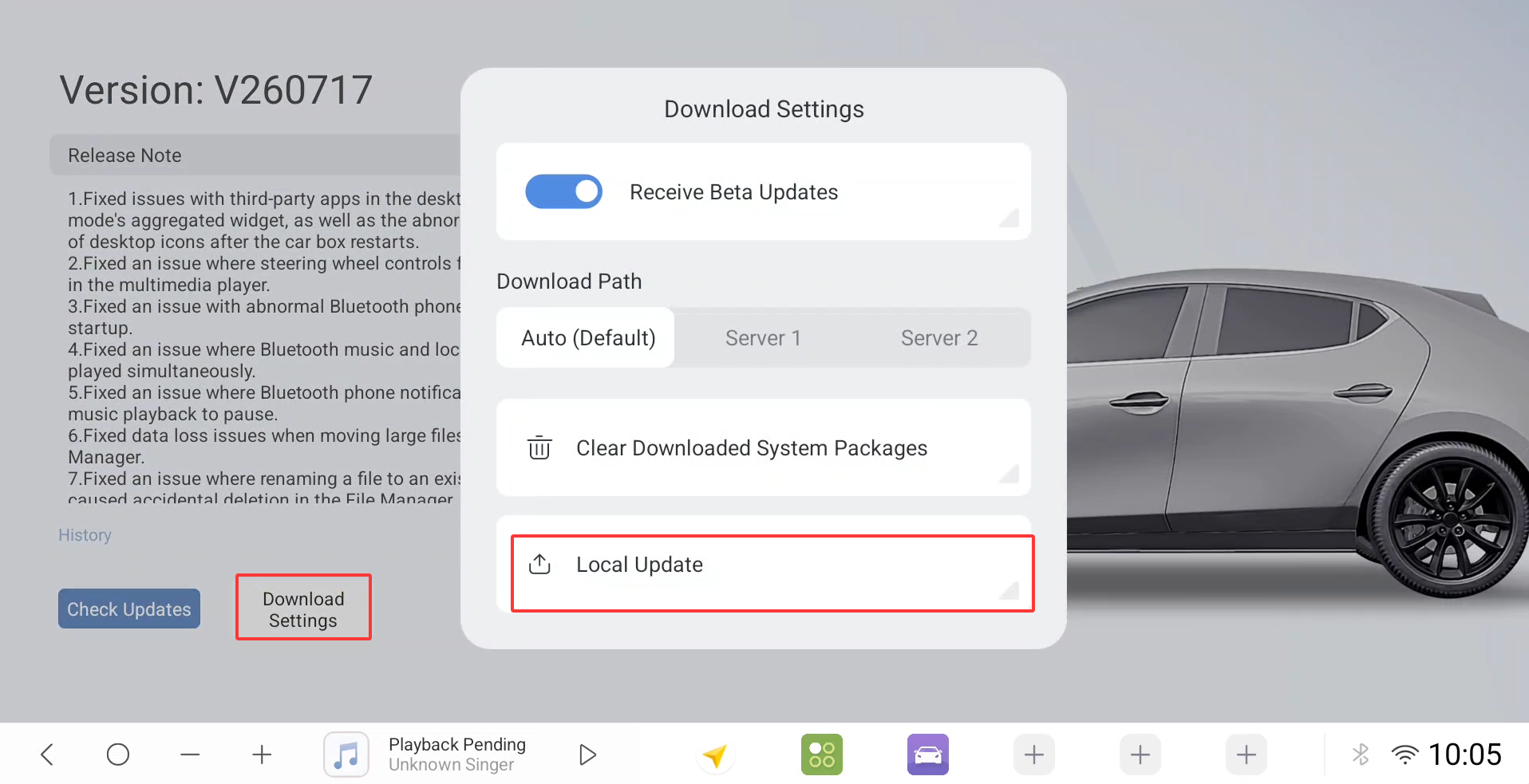
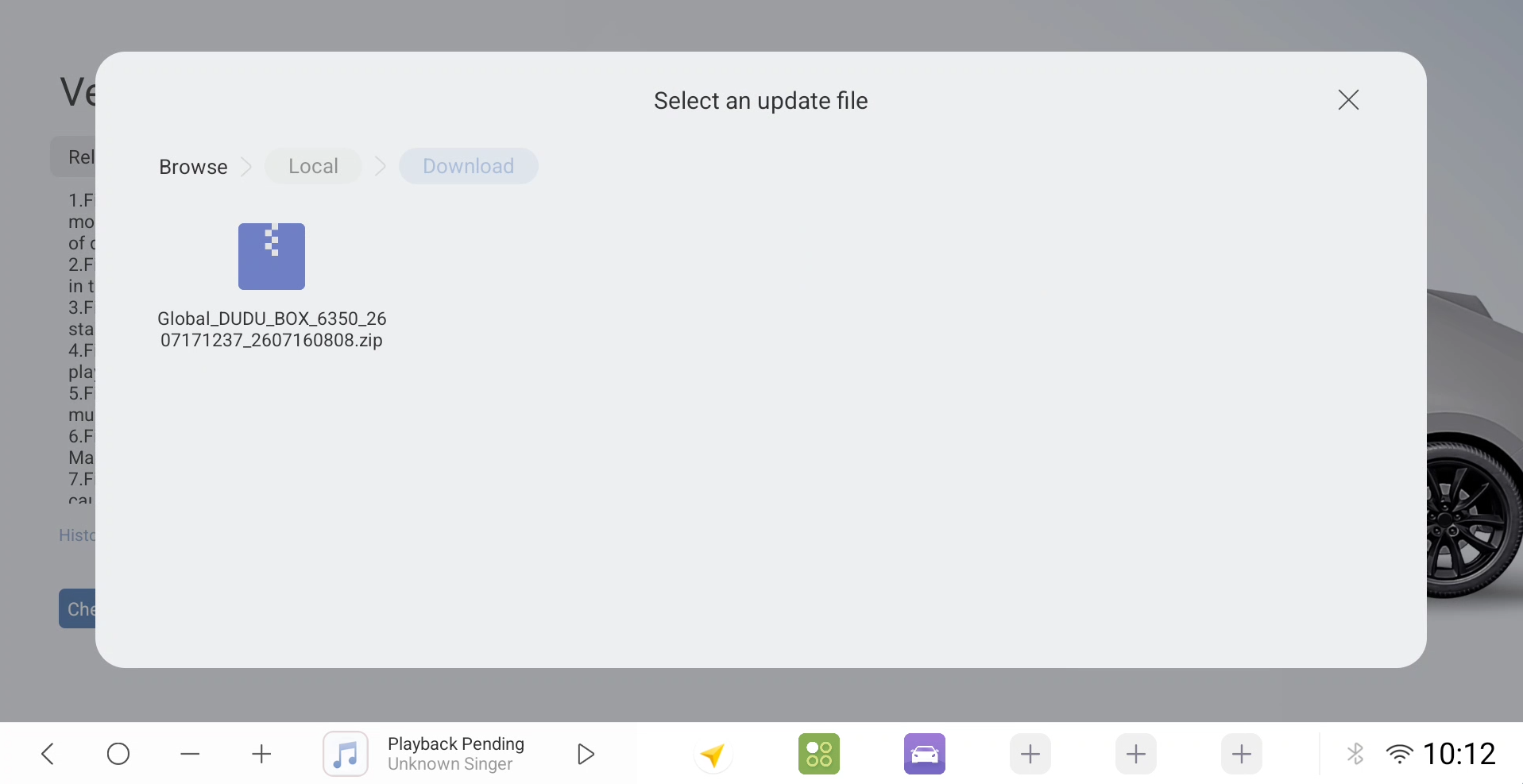
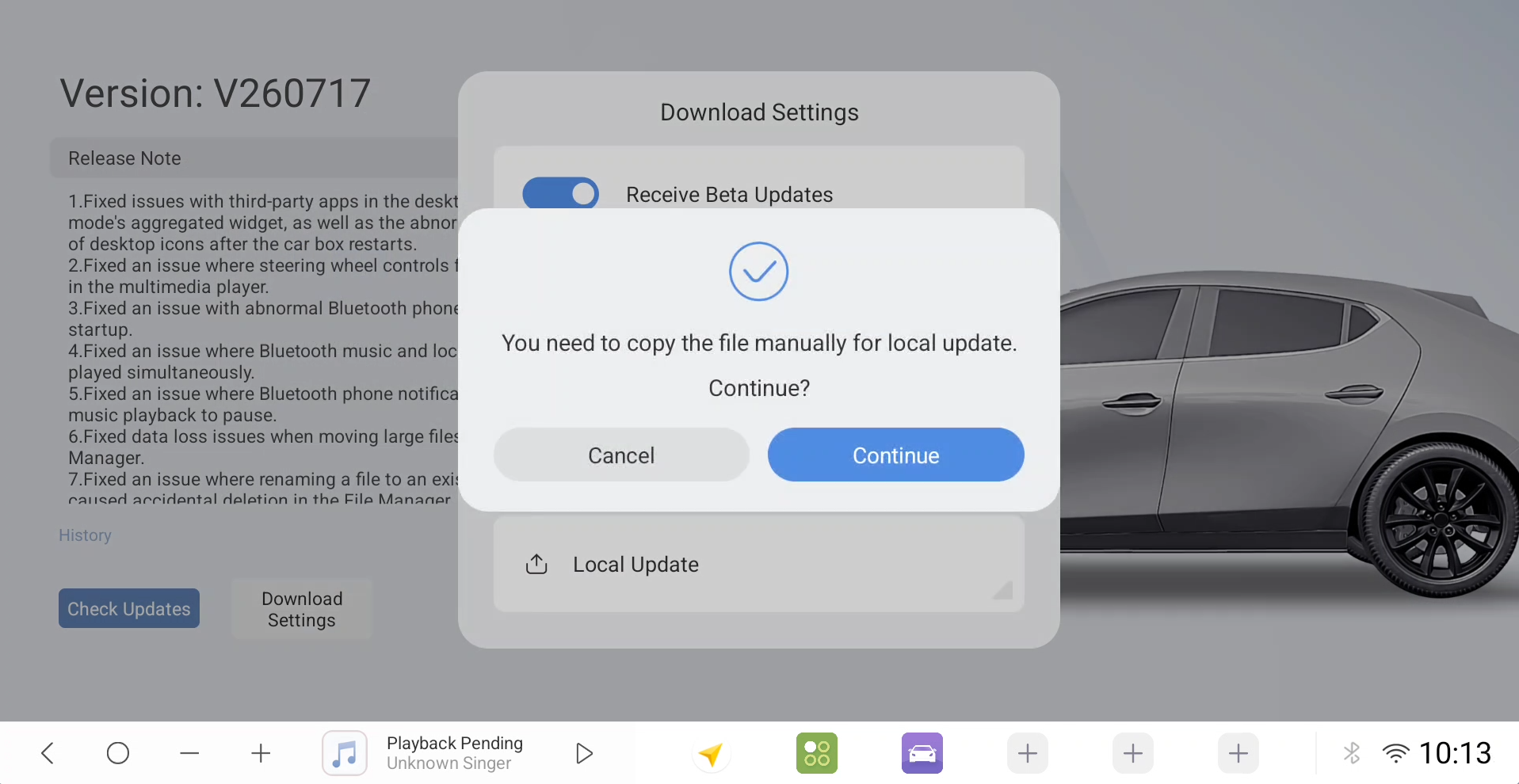
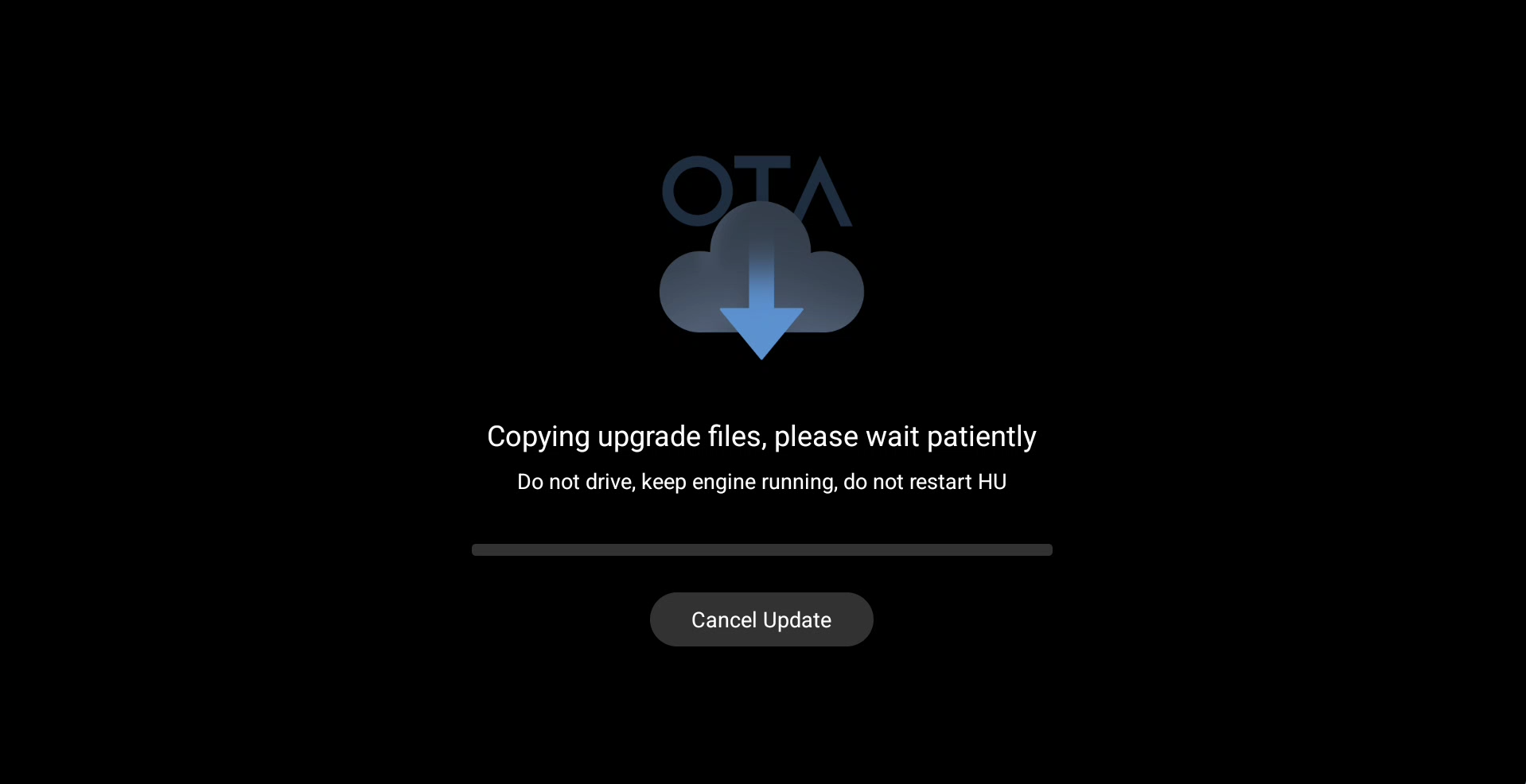
Wait for the process to complete; the device will automatically restart to finish the upgrade. Do not disconnect the power during this time.
Precautions:
1.1. SD card format: Supports FAT32 format (Memory cards larger than 128GB do not support FAT32 format; they can be modified to exFAT format, but please pay attention to the format. Carbox theoretically supports a maximum of 512GB, but a higher quality SD card is required);
1.2. Place the system package on the SD card or in the local root directory of the car box, and rename it to "update". Note the .zip extension (this is a compressed file; file management apps can see this extension). The correct extension is update.zip; otherwise, the card will not be recognized (avoid names like update.zip.zip);
1.3. When the car box is working, directly hot-inserting the SD card will automatically recognize it and enter flashing mode, displaying the upgrade progress. After completion, it will automatically restart. Remove the card to complete the upgrade; Note: For users without an SD card, using the upgrade method in the local root directory of the car box requires restarting the car box and automatic prompts for an upgrade;
1.4. After a successful upgrade, delete the system package or rename it to any name to use it as a normal SD card expansion card. Otherwise, it will continuously prompt for an upgrade package upon startup. The same applies to local upgrades via the car box; cancel the upgrade and delete the system package;
1.5. For users without a card reader, you can directly download the system package, wirelessly transfer it to the car box via your mobile phone, rename it to "update" in the car box's files, and move it to the SD card or the car box's own storage root directory. This will resolve the issue of not being able to upgrade the system without a card reader (open the car box's files - wireless transfer function);
1.6. To revert to an older system version, you must use the above method for reverting to "update". After a successful revert, decide whether to reset the system configuration based on your needs and actual situation.
(If you encounter problems reverting to an older system version, please place the file "into_recovery.cfg" in the root directory of your SD card, insert the Carbox, wait for the device to restart and complete the system reset, then remove the SD card and be sure to delete this file.
Google link: https://drive.google.com/file/d/1uK8mTN4S970m4DUI3PxiU15qNfQQlbPq/view?usp=drive_link)
System firmware package
Google Drive link: https://drive.google.com/drive/folders/1-3Whnrc2iZargTtbKdQw7i6jsA2LsF0y?usp=drive_link
